powerfinish powerpoint templates

[Home]

PRODUCTS

[Templates]
[
Video Backgrounds]
[
Backgrounds]
[
See What's New]
[
Special Offers]
[
Ultimate Presentation Kit]
[
Template Design Sets]
[
Presenters' Choice]
[
Pricing]

THE DETAILS

[Affiliate Program]
[
Join Our Community]
[
The License]
[
How to Contact Us]
[
Our Guarantee]
[
Our Customers]
[
Reviews]
[
Your Privacy]
[
Site Security]
[
Site Map]

PRESENTER RESOURCES

[FAQs and Support]
[
Worship Presentations]
[
PowerPoint for Teachers]
[
Free Samples]
[
Presentation Fact Finder]
[
Traveling Presenters]
[
How to Choose a Template]
[
Choosing a Template Color]
[
Keyboard Shortcuts]
[
What is a Template?]
[
What is a Background?]

Mac and Windows PowerPoint templatesPowerPoint templates just for MAC

Create Your Own Templates with Design Sets

What’s the difference between PowerPoint templates and backgrounds?

Templates are “pre-made” presentation shells.  When you apply a template to your presentation, the Title Master and Slide Master are automatically available for you to insert text. The typeface and font color and size are already set.

Backgrounds are JPG images to insert in your presentations as a “background” behind the text on one or more slides.


How to Use Template Design Sets

Specifications:

A PowerPoint template breakthrough
Templates with 18 backgrounds
the secret of alternate backgrounds in PowerPoint

Use alternate background designs with confidence.
They’re all guaranteed to look great together!

  • 50 template design sets in the volume.
  • Templates are POT format with 18 alternate slides in JPG format
  • ZIP download; for both MAC and Windows operating systems; Vista compatibles
  • Compatible with all versions of PowerPoint from version 97 forward.  Use them with Open Office Impess, too.

Template Design Sets

$49.99

Browse


What’s included in a Template Design Set?

  • One ready-to-use template with pre-set color schemes and pre-formatted place holders.
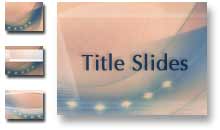
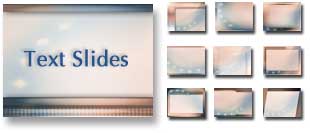
  • 18 coordinated background choices. Just insert one or more alternate designs to add variety to your presentation.

How do I use a Template Design Set?

You only need to know two commands in PowerPoint to make your presentation more professional with a PowerDesign Set.

Apply a template to your new or existing PowerPoint presentation.

  1. Choose Apply Design Template from the Format menu.
  2. Navigate to the location of the templates and select the template you want. You’ll see a thumbnail image in the navigation palette.
  3. Choose Apply.

Insert alternate backgrounds into your PowerPoint presentation.

  1. Choose Background from the Format menu.
  2. Under Background fill, click the down arrow, click Fill Effects, and then click the Picture tab.
  3. Click Select Picture, find the background you want, click the file name, and then click OK.
  4. To apply the background to the current slide, click Apply. (To apply the change to all slides, click Apply to All.)

See an example presentation created using Template Design Sets.


Even More Template Choices...individual Template Design Sets for Windows users.
Easy to use with spectacular results.

Download individual Template Design Sets for only $24.99 each!

custom powerpoint templates

Tip: Learn how to make your own custom PowerPoint templates using Slide Masters.

Back to top

Microsoft and PowerPoint are either registered trademarks or trademarks of Microsoft Corp.

[Home] [Templates] [Presenters' Choice] [On Sale Now!] [Template Design Sets] [Backgrounds] [News]

[Pricing] [The License] [Our Guarantee] [Reviews] [Contact Us] [Site Map]

[Free Samples] [Your Privacy] [Site Security] [Template Info] [Background Info] [DesignSet Info]

[How to Choose a Template] [Choosing a Template Color] [Keyboard Shortcuts]

[PowerPoint for Teachers] [Presentation Fact Finder] [Traveling Presenters]

Studio F Productions, Inc.     Sarasota, FL 34242      941-312-9609